🛠️ Zuverlässigkeits-Checkliste: wenn eine geplante Aufgabe verspätet ist oder nicht lief
Wenn eine geplante Aufgabe verspätet ist oder nicht lief, nutze diese Checkliste, um den Blocker schnell zu finden und zuerst die richtige Android-Einstellung zu korrigieren.
Wenn ein TikTask nicht läuft, liegt es meistens nicht an deinem Zeitplan. Meist spart Android im Hintergrund Akku.
Die gute Nachricht: Wenn du das einmal korrigierst, wird TikTask sehr zuverlässig.
Prüfe zuerst die einfachen Dinge (30 Sekunden)
Die 4 häufigsten Gründe, warum Aufgaben nicht laufen (und die Lösung)
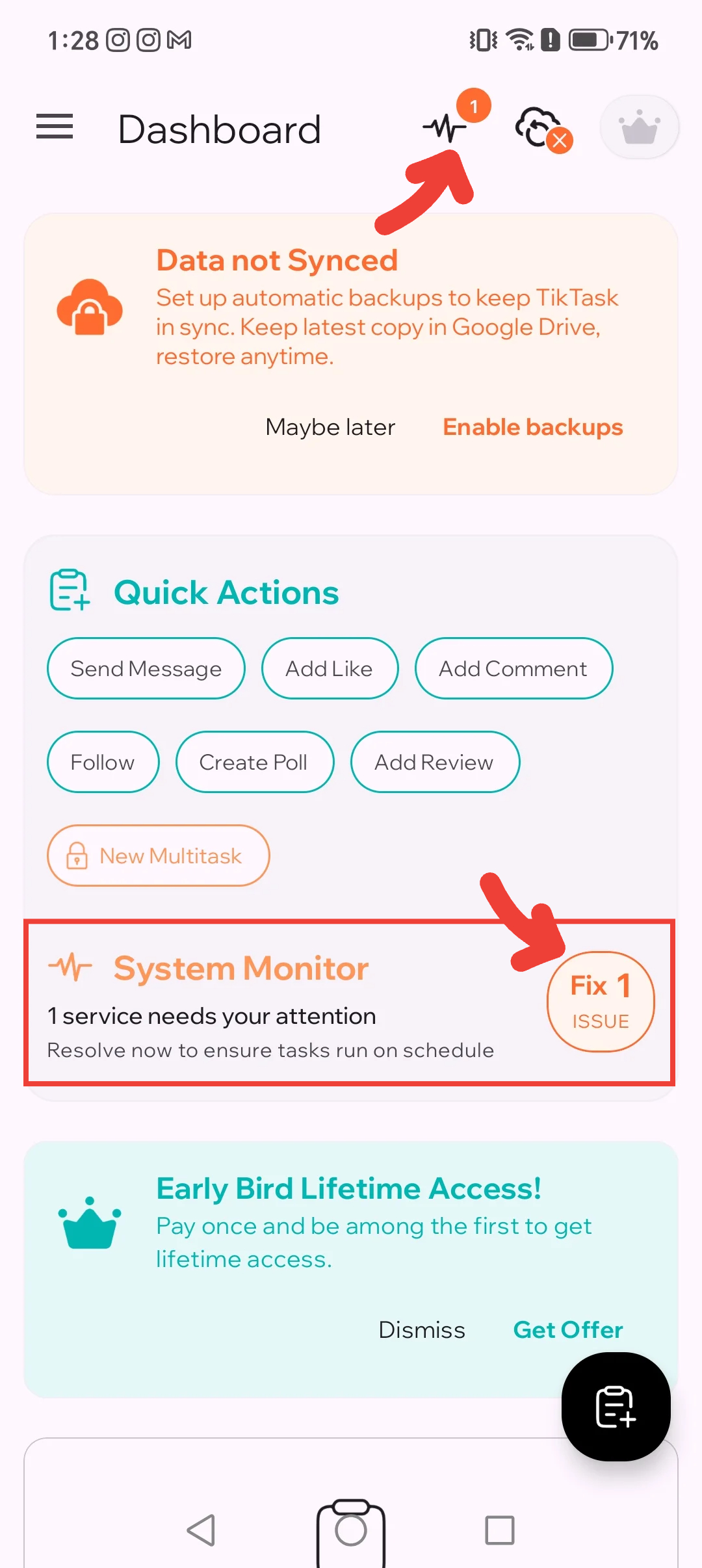
Öffne auf dem TikTask-Startbildschirm den Systemmonitor, um zu sehen, was auf deinem Smartphone wichtig ist. Er kann Prüfungen wie Bedienungshilfe, Akku-Optimierung, Power Management, Xiaomi-Sonderberechtigungen, Akku-Einschränkungen im Hintergrund, Auto-Start / Auto-Launch, Benachrichtigungen oder Overlays hervorheben und – wenn unterstützt – direkt zum richtigen Einstellungsbildschirm springen. Wenn die Verknüpfung auf deinem Smartphone nicht funktioniert, kannst du trotzdem den Einstellungswegen in den einzelnen Abschnitten unten folgen.
1) Die Bedienungshilfe ist deaktiviert (am häufigsten)
TikTask braucht die Bedienungshilfe, um Aktionen in anderen Apps auszuführen.
2) Die Akku-Optimierung blockiert TikTask
Android kann Apps verzögern oder stoppen, um Strom zu sparen. Setze TikTask auf Uneingeschränkt (oder „Nicht optimieren“).
3) Auto-Start / Hintergrundaktivität ist deaktiviert
Einige Marken verlangen einen speziellen Schalter, damit Apps im Hintergrund starten dürfen (häufig bei Xiaomi, Tecno und Infinix).
- Suche nach Auto-Start, App-Start oder Power Manager
- Für TikTask aktivieren
4) Eine gerätespezifische Hintergrundregel ist noch aktiv
Auf manchen Smartphones steckt der letzte Blocker in einem markenspezifischen Menü wie Power Manager, Grenzen für die Hintergrundnutzung, Xiaomi-Sonderberechtigungen oder App-Start. Benachrichtigungen und Overlays sorgen nicht dafür, dass Aufgaben laufen, helfen dir aber, Hinweise und Warnungen zu sehen.
Schnelle „Jetzt erledigen“-Checkliste (2 Minuten)
- ✓ Bedienungshilfe aktiviert
- ✓ Akku auf Uneingeschränkt / nicht optimiert gesetzt
- ✓ Auto-Start / Hintergrundaktivität erlaubt (falls verfügbar)
- ✓ Notifications enabled
- ✓ Overlays nur aktiviert, wenn TikTask sie für Hinweise oder Timer verlangt
Wenn es trotzdem nicht läuft
- Starte dein Smartphone einmal neu
- Öffne TikTask nach dem Neustart einmal
- Plane einen neuen Test für 2 Minuten ab jetzt
Bevor du dem Kanal die Schuld gibst
Die meisten verspäteten Aufgaben werden nicht durch WhatsApp, Telegram, Gmail oder einen anderen Kanal verursacht. Der Blocker ist meist eine Android-Akku-Regel, die Bedienungshilfe oder eine gerätespezifische Hintergrundbeschränkung.